Layers and objects
Layers are like transparent sheets stacked on top of each other. They let you keep a sketch separate from the clean lines, or the background separate from the details. Every project starts with one layer.
Open the layer panel with the stack icon at the top right of the toolbar or with L.
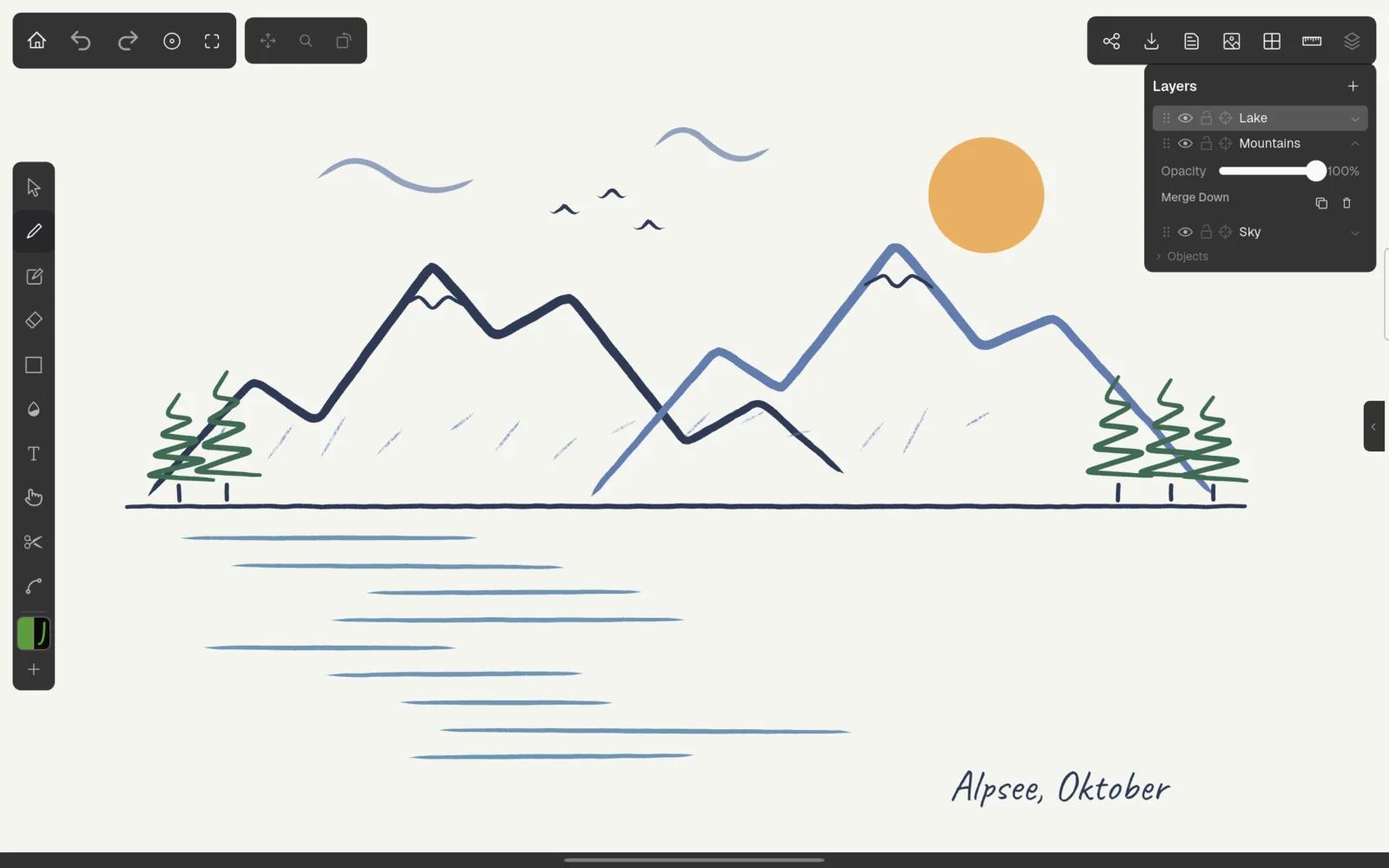
The layer list
The topmost layer in the list is drawn on top. The highlighted row is the active layer: new strokes, shapes, text and imported pictures go there. Tap a row to make that layer active.
Each row has, from left to right:
- a handle for dragging the layer to another position;
- the eye, which shows or hides the layer;
- the lock, which protects the layer from changes (it turns orange when locked);
- the ‘Focus’ button, described below;
- the layer name. Double-tap it to rename the layer; Enter confirms, Esc cancels;
- the opacity, if it is below 100%;
- an arrow that expands more options.
The plus button at the top adds a new layer above all others and makes it active.
More layer options
Tap the arrow at the end of a row to expand it:
- ‘Opacity’ makes the whole layer more transparent.
- ‘Merge Down’ combines the layer with the one below. It is available when the layer is visible and not the bottom one.
- The copy icon (‘Duplicate layer’) creates a copy named ‘‹name› copy’ directly above.
- The bin icon (‘Delete layer’) deletes the layer without asking. You can bring it back with undo. The last remaining layer cannot be deleted.
All layer changes can be undone.
Focus
The crosshair button puts a layer in focus: it becomes the active layer and all other layers fade to 15% so you can concentrate on it. Tap the button again (‘Exit Focus’) to return to normal. Selecting another layer also ends focus.
Hidden and locked layers
Hidden layers are not drawn, not exported and cannot be edited. Locked layers stay visible but cannot be drawn on or changed; their strokes cannot be selected, erased, sliced or nudged. If you try to draw on a hidden or locked active layer, Kritzel Studio tells you so.
Objects
The ‘Objects’ section at the bottom of the layer panel lists everything on the active layer in drawing order: strokes (‘Stroke 1’, ‘Stroke 2’, …), shapes, text (with its first words) and images. Groups appear as entries you can expand.
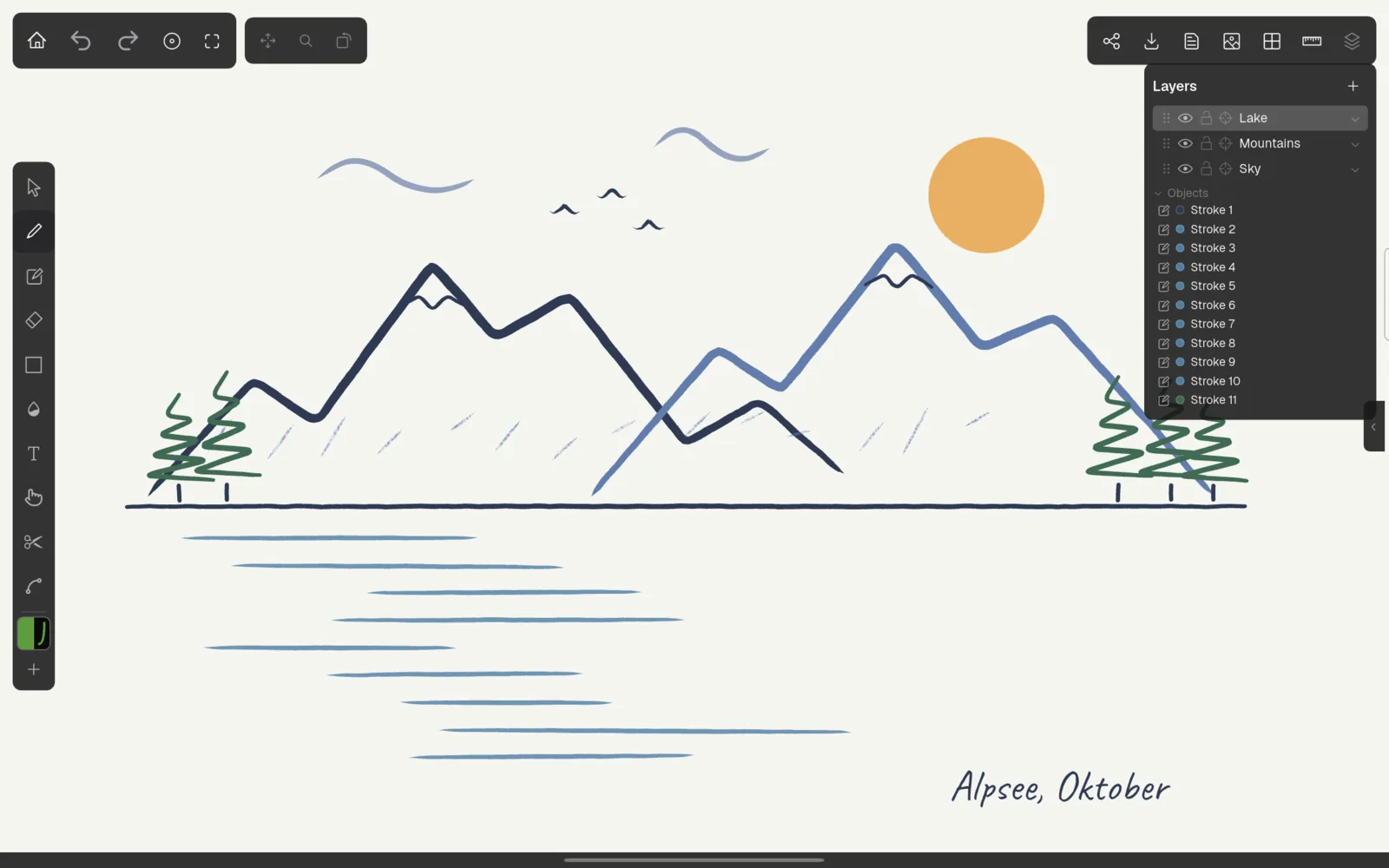
Tap an entry to select that object; Kritzel Studio switches to the Select tool. This helps when a small or hidden stroke is hard to hit on the canvas.