Getting started
This chapter walks you through your first drawing: creating a project, drawing a few strokes, undoing a mistake and getting back to the gallery. The later chapters explain each part in detail.
Before you start
Kritzel Studio needs a tablet or a desktop computer: an iPad with iPadOS 15 or later, an Android tablet with Android 7.0 or later, a Mac with macOS 12 or later, or a Windows 10 or 11 PC. A stylus is optional but makes the most of the pressure-sensitive brushes. With a finger or a mouse, most brushes simulate pressure from your drawing speed.
The app keeps a bitmap of each visible layer in memory. It runs on devices with 3 GB of RAM, works comfortably with 4 GB, and handles large drawings with many layers best with 6 to 8 GB.
The gallery
When you open Kritzel Studio you land in the gallery. It shows your projects and folders as cards, newest first. The first time, it is empty and offers a ‘Create Project’ button.
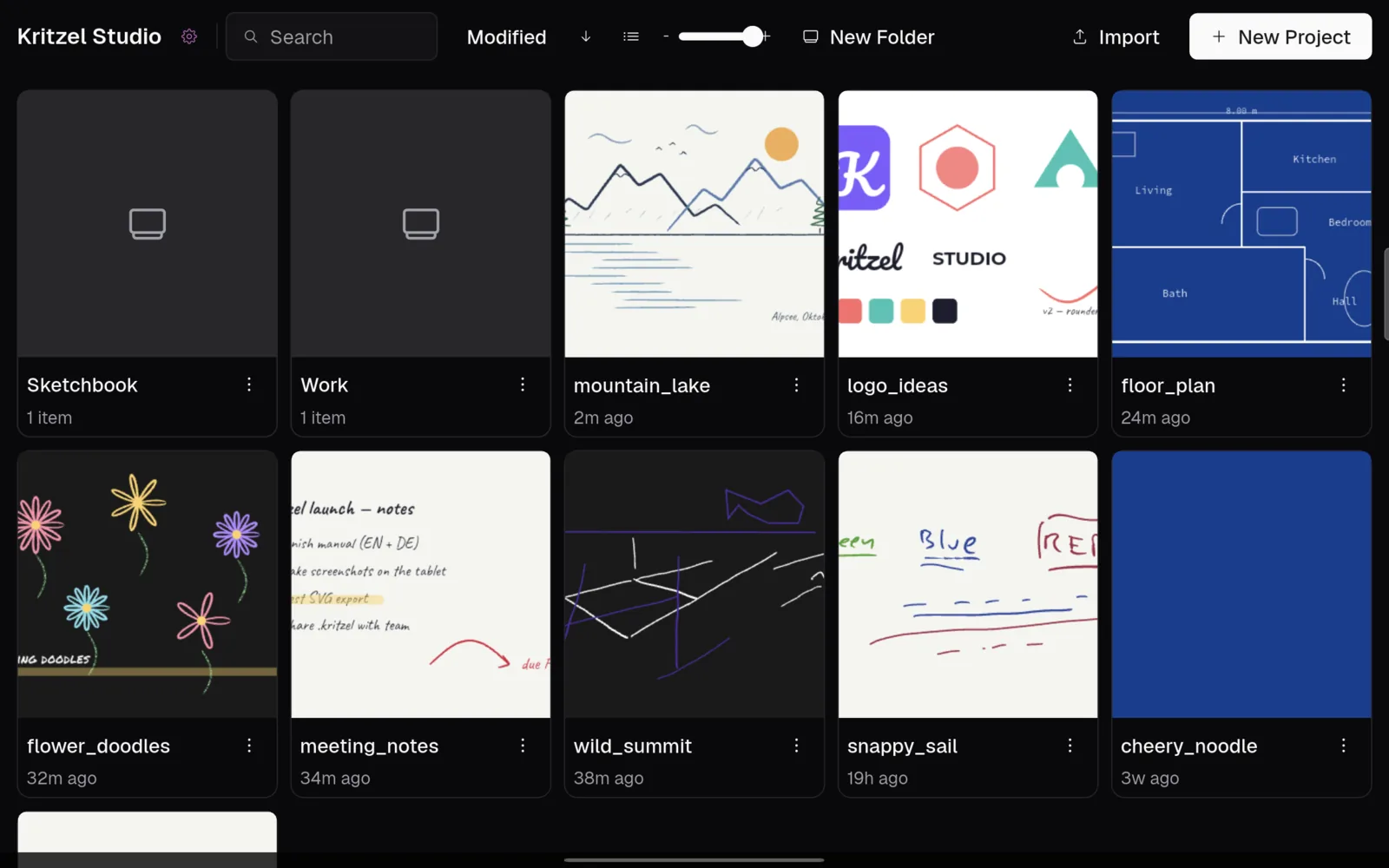
The bar at the top holds, from left to right: the app name (tap it for version information), the gear icon for the settings, the search field, the sort and view controls, ‘New Folder’, ‘Import’ and ‘New Project’.
Creating a project
- Tap ‘New Project’.
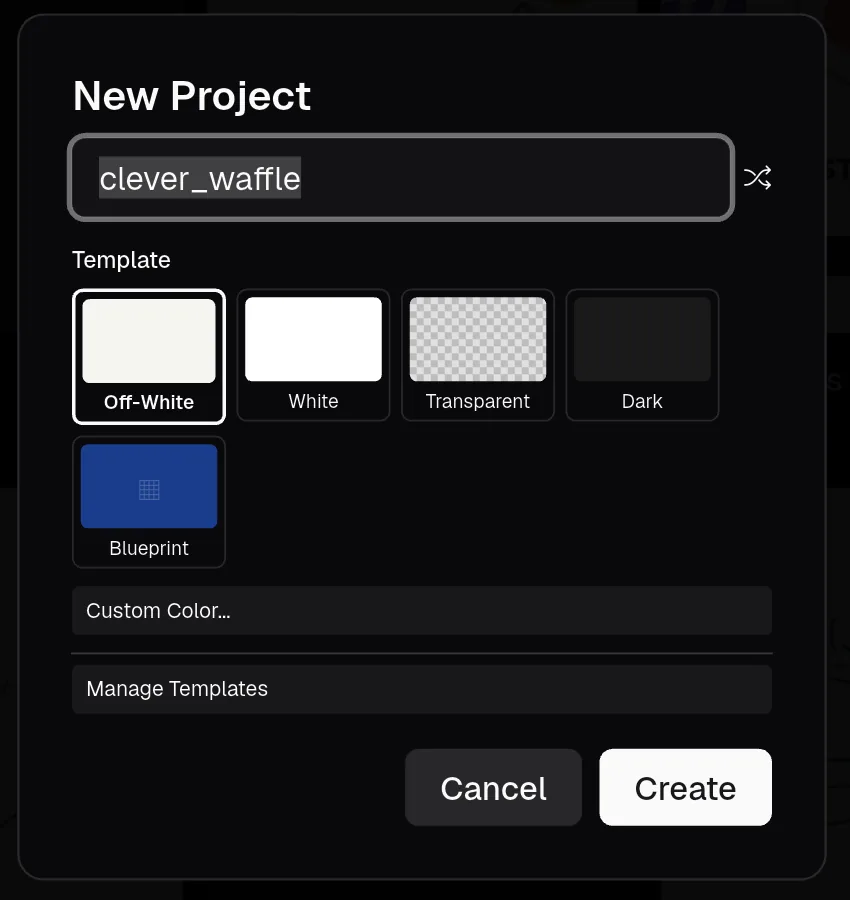
- Kritzel Studio suggests a random name such as
clever_waffle. Type your own name or tap the shuffle icon next to the field for another suggestion. - Choose a template. It sets the background colour, the grid and the starting pen colour. ‘Off-White’ is preselected; you can also pick ‘Custom Color…’ for any background colour.
- Tap ‘Create’. The new project opens straight away.
To skip the dialog, long-press ‘New Project’ (with a keyboard attached, you can also hold Alt or Option: the button then reads ‘Kritzel’ and shows a lightning icon). Kritzel Studio then creates a project with a random name and the default template and opens it right away.
Your first strokes
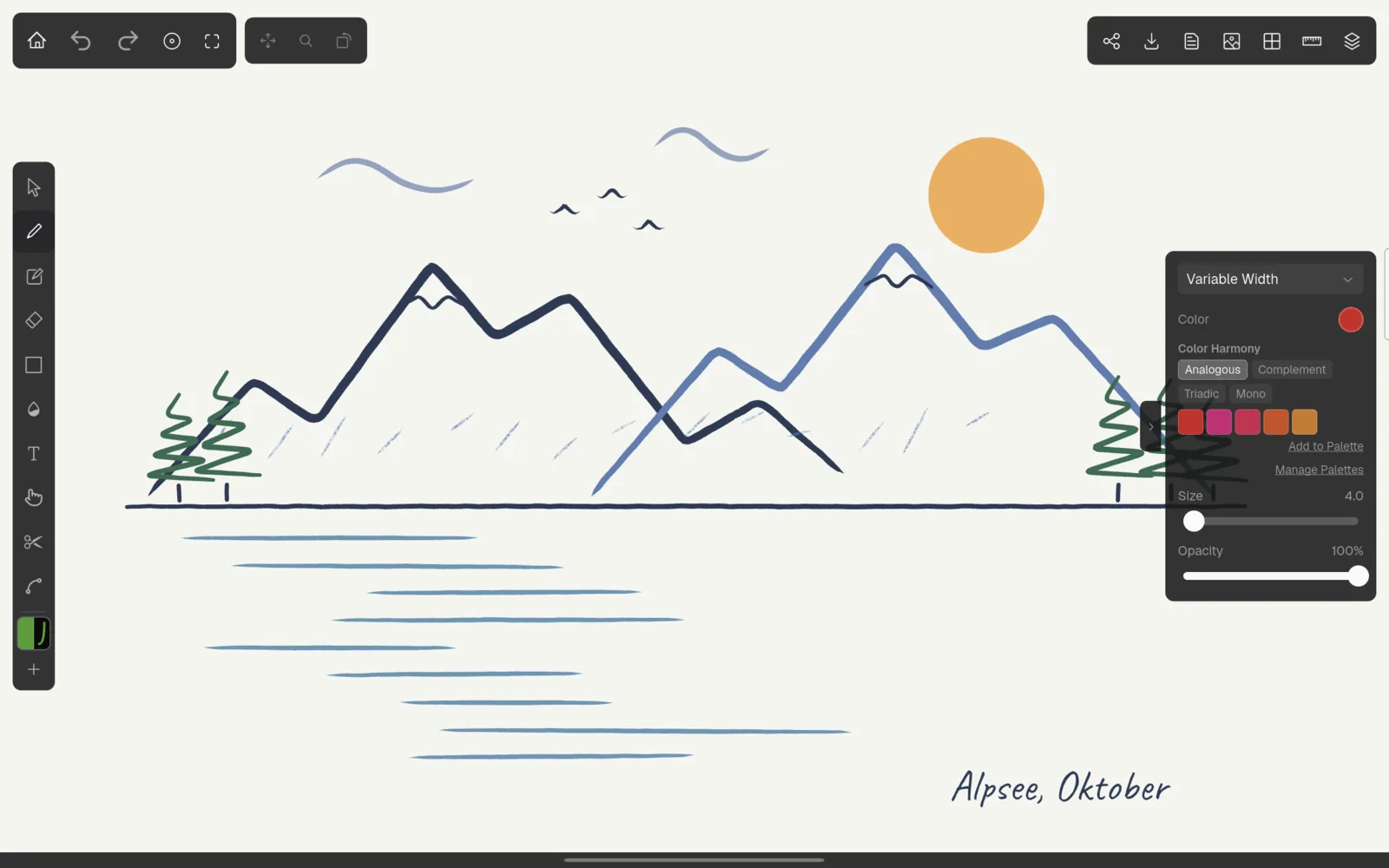
The canvas opens with the pen selected. Draw with your stylus, finger or mouse. A few things to try:
- Change the colour or the stroke width: on a tablet, tap the small tab on the right edge of the screen to show the property panel. On a desktop the panel is always visible.
- Pick another brush: tap the brush name at the top of the property panel (‘Variable Width’ by default) and choose, say, ‘Fountain’ or the ‘Soft’ pencil.
- Undo a stroke with the arrow at the top left, with a two-finger tap on the canvas, or with Ctrl+Z.
- Zoom and pan with two fingers, or with the mouse wheel and the middle mouse button.
Saving and going back
There is no save button you need to remember. Kritzel Studio saves a few seconds after each change, when the app goes to the background, and when you leave the canvas. To return to the gallery, tap the house icon at the top left. The project’s thumbnail is updated on the way out.
Projects are stored inside the app. On iPad and Android they cannot be reached with a file manager, and on Android they are removed when you uninstall the app. Export important projects as
.kritzelfiles from time to time; see Backing up projects.
Where to go next
- The canvas explains every button around the drawing area.
- Drawing tools covers the ten tools in the tool rail.
- Brushes and colours shows how to set up your own pens.