Settings
Open the settings with the gear icon next to the app name in the gallery. The settings apply to the whole app, not to a single project. They are listed here in the order the app shows them.
Appearance
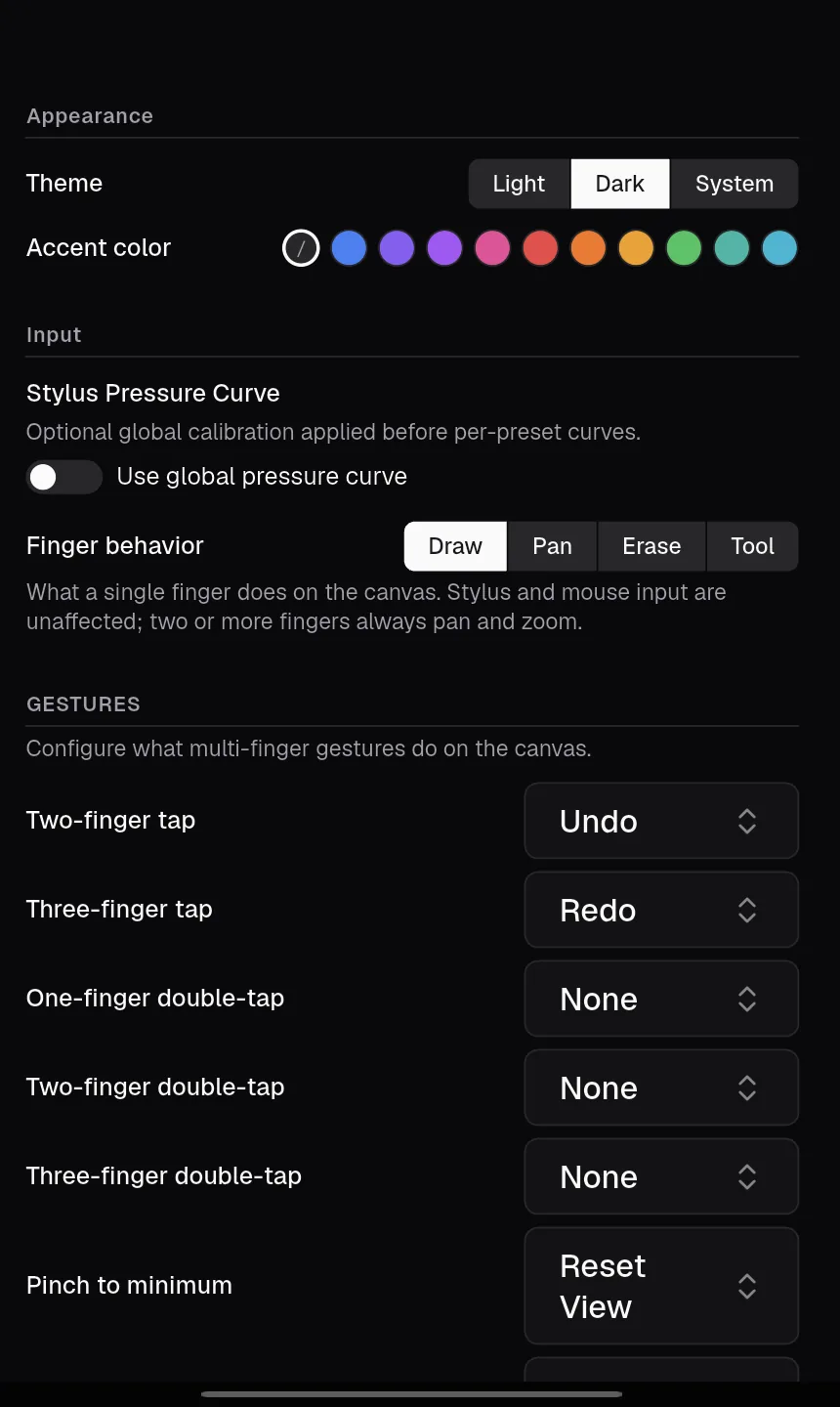
‘Theme’ switches between ‘Light’, ‘Dark’ and ‘System’ (following your device). The default is ‘Dark’. ‘Accent color’ changes the highlight colour of the interface; ‘Default’ uses the theme’s own neutral accent.
Input
‘Stylus Pressure Curve’ is an optional global calibration for your stylus. Switch on ‘Use global pressure curve’ to adjust it, for example if your stylus feels too soft or too hard. It is applied before the pressure curve of each brush preset. Off by default.
‘Finger behavior’ decides what a single finger does on the canvas (tablets only):
| Option | Effect |
|---|---|
| ‘Draw’ | The finger uses the active tool, like the stylus. This is the default. |
| ‘Pan’ | The finger moves the canvas. Useful if you draw only with a stylus. |
| ‘Erase’ | The finger always erases, whatever tool is active. |
| ‘Tool’ | The finger always uses the tool chosen under ‘Finger tool’ (Select, Pen, Pencil, Eraser, Shape, Nudge or Slice). |
A stylus and a mouse are not affected, and two or more fingers always pan and zoom.
Gestures
On tablets you can assign an action (‘None’, ‘Undo’, ‘Redo’ or ‘Reset View’) to each of these gestures:
| Gesture | Default |
|---|---|
| ‘Two-finger tap’ | ‘Undo’ |
| ‘Three-finger tap’ | ‘Redo’ |
| ‘One-finger double-tap’ | ‘None’ |
| ‘Two-finger double-tap’ | ‘None’ |
| ‘Three-finger double-tap’ | ‘None’ |
| ‘Pinch to minimum’ (a quick pinch with the fingers almost closing) | ‘Reset View’ |
| ‘Pinch to maximum’ (a quick, wide spread) | ‘None’ |
Interface
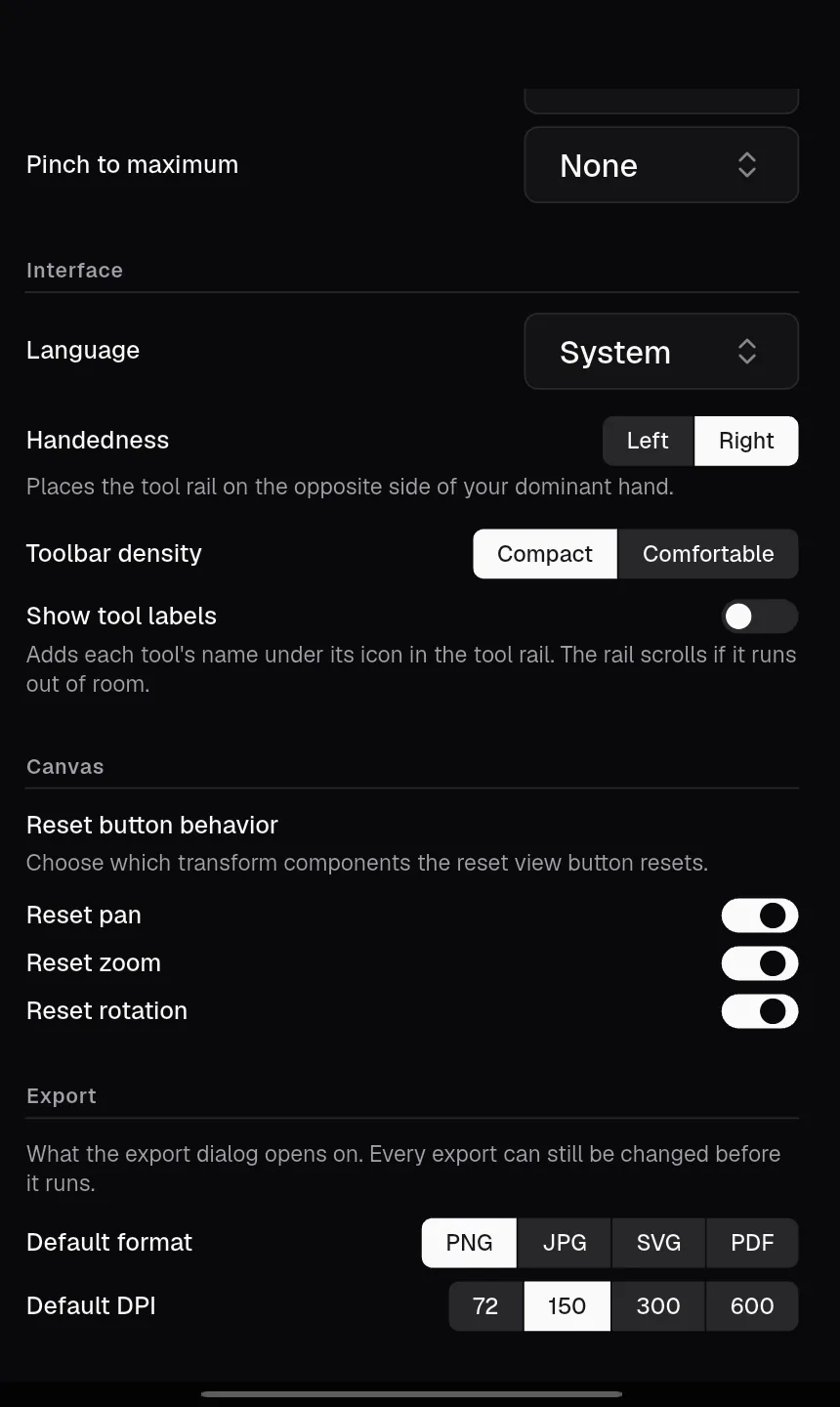
- ‘Language’: ‘System’ (default), ‘English’ or ‘Deutsch’.
- ‘Handedness’: ‘Right’ (default) puts the tool rail on the left; ‘Left’ puts it on the right and the panels on the left.
- ‘Toolbar density’: ‘Compact’ (default) or ‘Comfortable’, with larger buttons.
- ‘Show tool labels’: shows each tool’s name below its icon. Off by default.
Canvas
‘Reset button behavior’ decides which parts of the view the ‘Reset view’ button resets: ‘Reset pan’, ‘Reset zoom’ and ‘Reset rotation’. All three are on by default.
Export
‘Default format’ (PNG, JPG, SVG or PDF; default PNG) and ‘Default DPI’ (72, 150, 300 or 600; default 150) are the values the export dialog starts with. You can still change them for each export.
Background templates
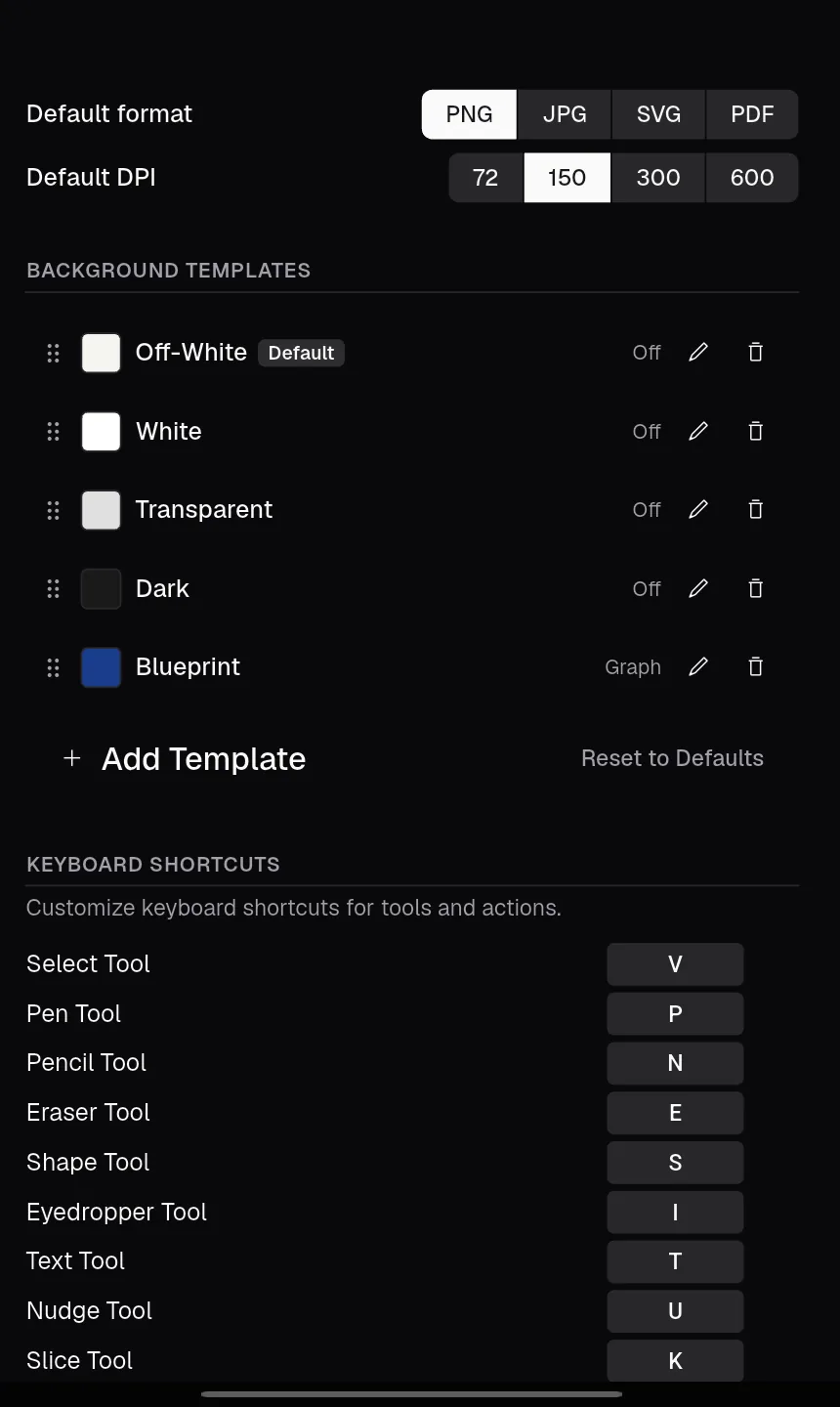
This list holds the templates offered for new projects and in the background panel. The first template is marked ‘Default’ and is used for new projects and for the quick start.
- Drag a template by its handle to change the order. Moving another template to the top makes it the default.
- Double-tap a name to rename the template.
- The pencil icon opens ‘Edit Template’: name, background colour (or transparent), grid type and grid settings, and the initial pen colour.
- The bin icon deletes a template after asking.
- ‘Add Template’ creates a new one; ‘Reset to Defaults’ restores the five built-in templates and removes your own.
Keyboard shortcuts
Every shortcut can be changed. Tap a shortcut, then press the new key combination. Esc cancels. If the combination is already in use, Kritzel Studio asks whether to reassign it. A reset icon appears next to changed shortcuts, and ‘Reset All to Defaults’ restores all of them. The defaults are listed in Shortcuts and gestures.
Advanced
Tap ‘Advanced’ to expand this section.
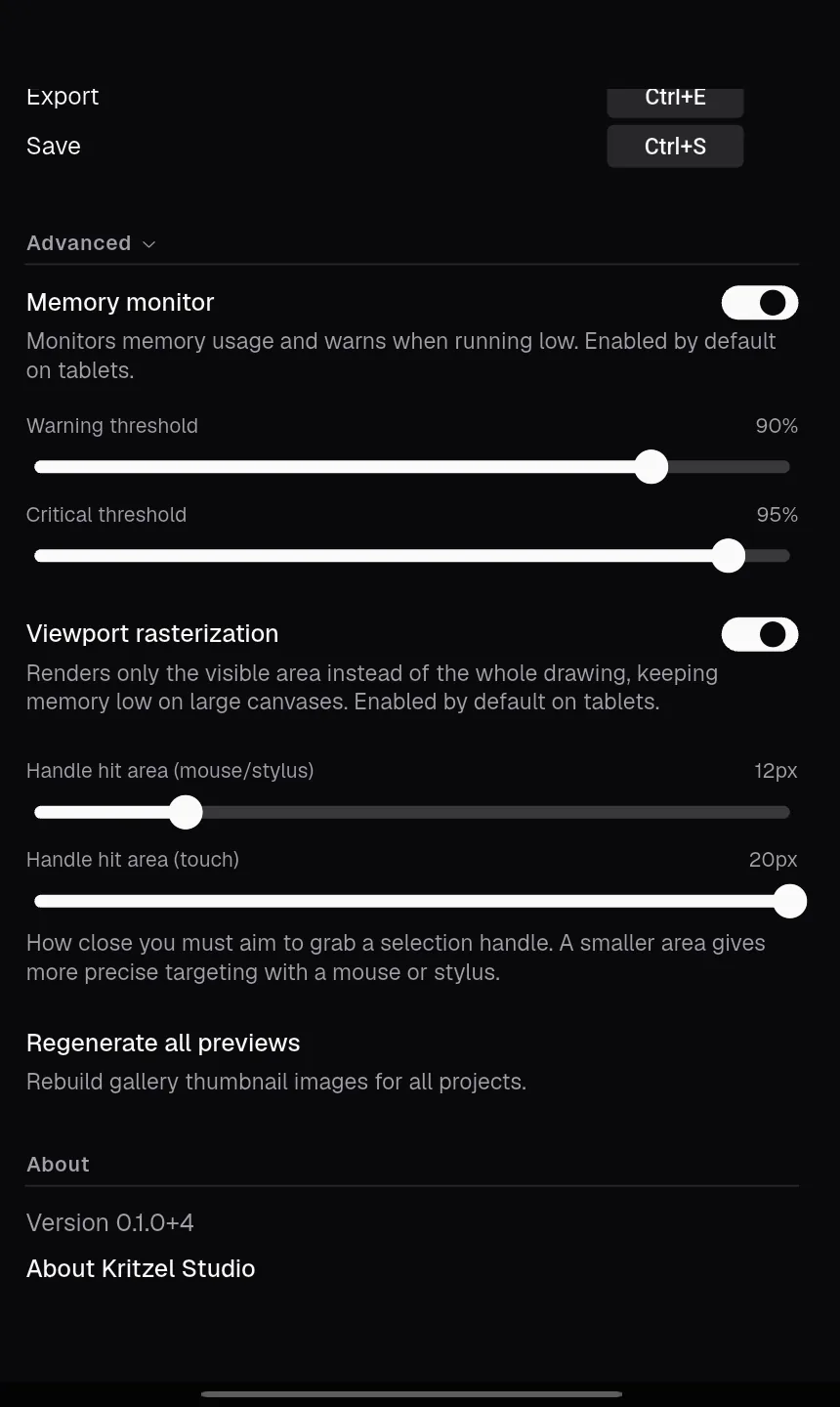
- ‘Memory monitor’ watches memory use and warns before it runs out. On by default on tablets, off on desktop. ‘Warning threshold’ (default 90%) and ‘Critical threshold’ (default 95%) set when it warns. See Memory warnings.
- ‘Viewport rasterization’ renders only the visible part of a drawing, which keeps memory use low on large canvases. On by default on tablets.
- ‘Handle hit area (mouse/stylus)’ (default 12 px) and ‘Handle hit area (touch)’ (default 20 px) set how precisely you have to aim to grab a selection handle.
- ‘Regenerate all previews’ rebuilds the thumbnails of all projects in the gallery.
About
‘About Kritzel Studio’ shows the version, links to the website and to the issue tracker for bug reports and feature requests, and lists the open source licences of the components the app uses. You can also open it by tapping the app name in the gallery.