
Gallery and projects
The gallery is the start screen of Kritzel Studio. It lists your projects and folders, lets you organise them and is where you import and back up whole projects.
Project cards
Each project appears as a card with a thumbnail, its name and when it was last changed (‘5m ago’, ‘3h ago’, ‘2d ago’ and so on; after 30 days the date is shown instead). Tap a card to open the project.
Folders appear before the projects. A folder card shows how many items it contains; tap it to open the folder. Inside a folder, a second row below the toolbar shows a back arrow and the path (for example ‘Kritzel Studio › Work › Clients’). Tap any part of the path to jump there. On Android, the system back button leaves multi-select first, then goes up one folder, and only closes the app at the top level.
Project actions
Tap the three dots on a card, or right-click it on a desktop, to open its menu:
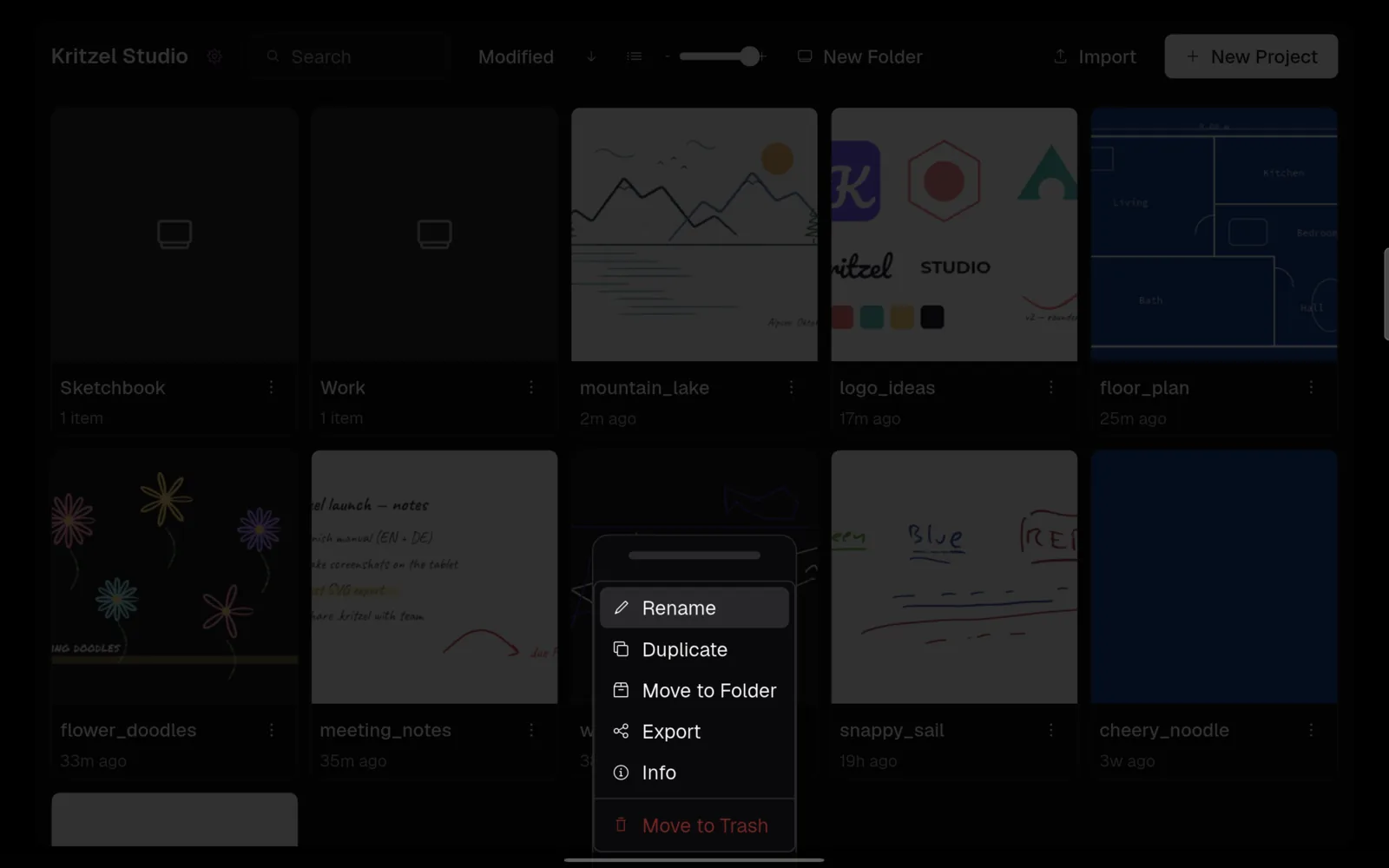
| Action | What it does |
|---|---|
| ‘Rename’ | Gives the project a new name. |
| ‘Duplicate’ | Creates a copy named ‘‹name› (Copy)’. |
| ‘Move to Folder’ | Moves the project into a folder. You can also create a new folder in this dialog and move the project there in one step. |
| ‘Export’ | Saves the project as a .kritzel file (not as an image; images are exported from the canvas). |
| ‘Info’ | Shows the creation and modification dates, the number of layers, strokes and images, the file format version, the size on disk and where the project is stored. |
| ‘Move to Trash’ | Moves the project into the trash. |
Folders
Tap ‘New Folder’ to create a folder inside the folder you are currently viewing. Folders can be nested up to five levels deep; at the fifth level the button disappears. A folder’s menu (three dots or right-click) offers ‘Rename’, ‘Move Folder’ and ‘Move to Trash’. Moving a folder takes everything inside it along.
New projects and imported .kritzel files are always placed in the folder you are looking at.
Searching, sorting and views
The search field filters projects by name as you type. At the top level it searches all folders (but not the trash); inside a folder it searches that folder and its subfolders.
‘Modified’ next to the search field is the sort order. Tap it to switch between ‘Modified’, ‘Created’ and ‘Name’, and tap the arrow next to it to reverse the order. The next icon switches between the grid of cards and a list. In grid view, the slider sets the card size: the further right, the bigger the cards and the fewer columns. The far right position chooses the number of columns automatically. Kritzel Studio remembers sort order, view and card size.
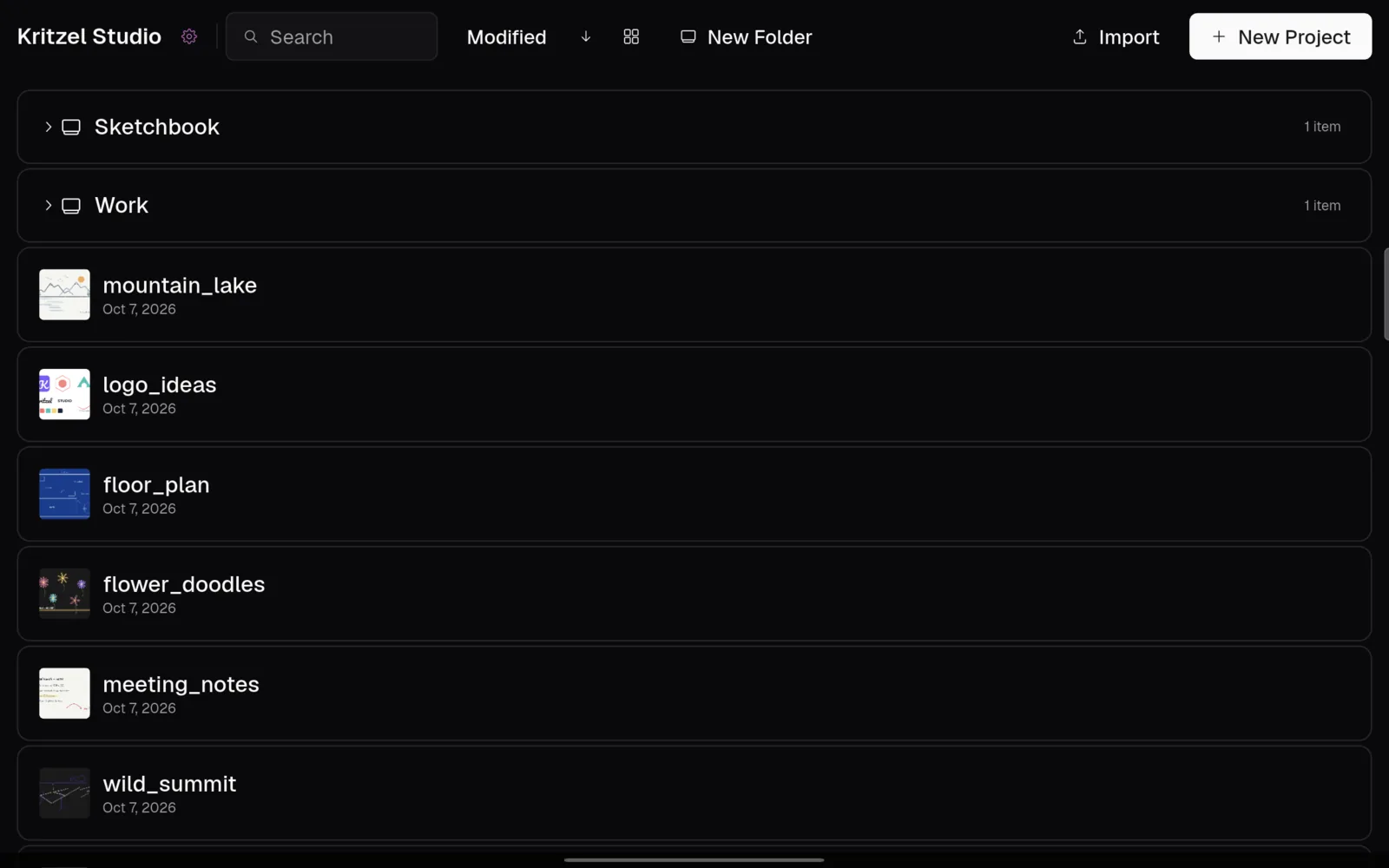
In list view, folders can be expanded and collapsed in place; double-tap a folder to open it. Project rows in the list have no menu of their own: to rename a project or see its info, switch back to the grid. Moving, duplicating, exporting and deleting work in both views through multi-select.
If the window is narrow (a tablet in portrait, or a small desktop window), the sort, view and size controls move into a ‘View’ menu, and the search field shrinks to a magnifier icon.
Selecting several projects
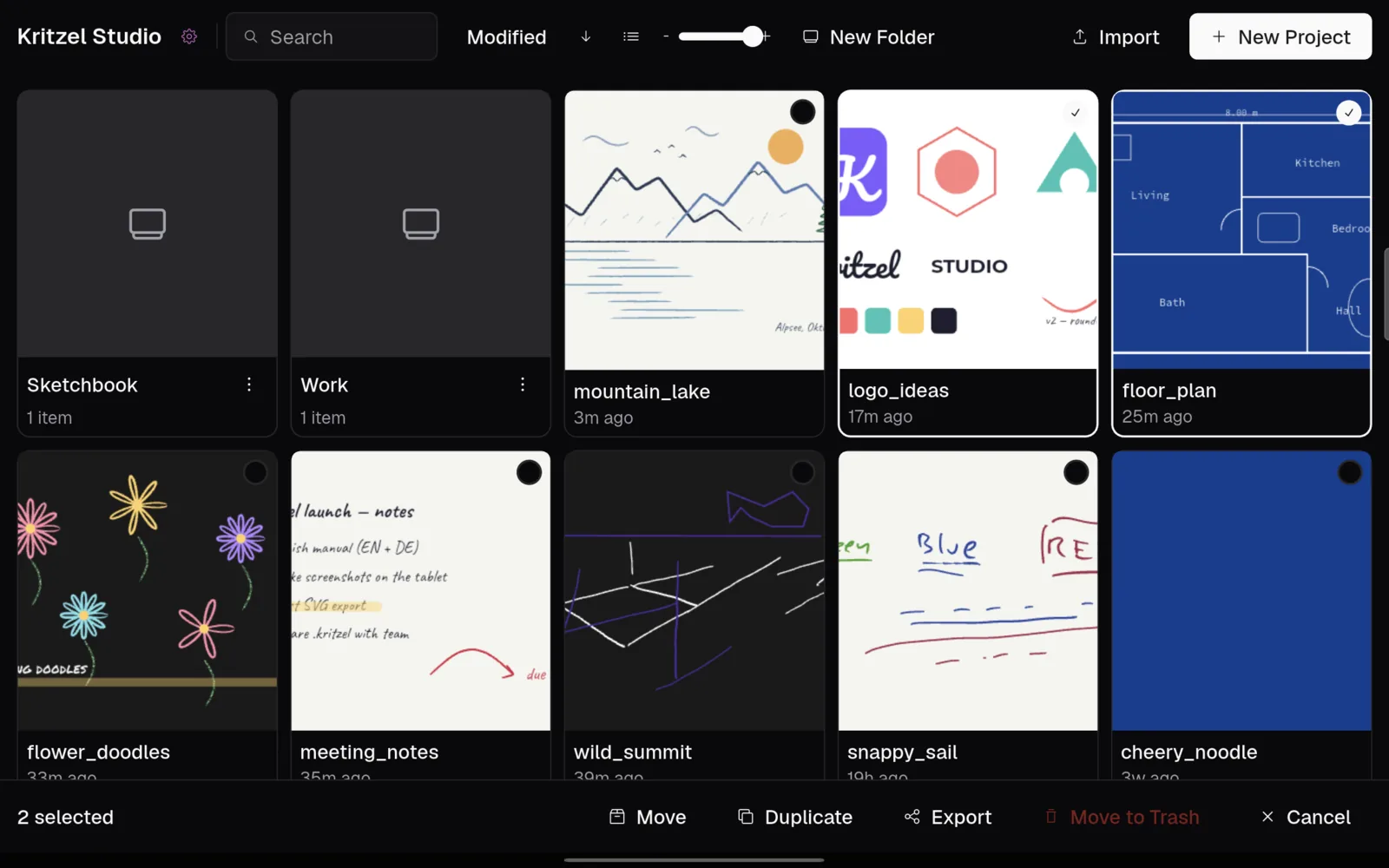
Long-press a project card to start multi-select. Each card then shows a round checkbox; tap more cards to add them. The bar at the bottom shows how many projects are selected and offers ‘Move’, ‘Duplicate’, ‘Export’, ‘Move to Trash’ and ‘Cancel’. Deselecting the last project ends multi-select.
The trash
Projects and folders you move to the trash are not deleted yet. The trash appears as the last card at the top level once something is in it. Inside the trash you can delete items permanently, or empty the whole trash with ‘Empty Trash’. Both ask for confirmation and cannot be undone.
There is no separate restore command. To get a project back, use ‘Move to Folder’ and choose ‘Root (no folder)’ or any folder; for a folder, use ‘Move Folder’. Nothing is deleted from the trash automatically.
Importing a project
‘Import’ in the gallery opens a .kritzel file. The project is added as a copy in the folder you are viewing; the original file is left untouched. Images and SVG files are imported from inside a project instead (see Import and export), or by opening them with Kritzel Studio from another app.
If the import fails, a message tells you why: the file is not a valid .kritzel file, it was created by a newer version of Kritzel Studio, or it is too large.
Backing up projects
Your projects are stored inside the app’s private storage. On iPad and Android they are not visible in the Files app or a file manager, and Android removes them when the app is uninstalled. The way to keep a copy is to export .kritzel files:
- Long-press a project to start multi-select and tap all projects you want to back up.
- Tap ‘Export’.
- On a tablet, the share sheet opens: save the files to your cloud storage, send them to yourself or save them in the Files app. On a desktop, choose a destination folder.
A .kritzel file contains the complete project, including imported images, and can be imported on any device running Kritzel Studio.