Grids, guides and backgrounds
Grids, guides and the background are saved with each project and can be undone like any other change.
Grids
Tap the grid icon in the toolbar to open the grid settings.
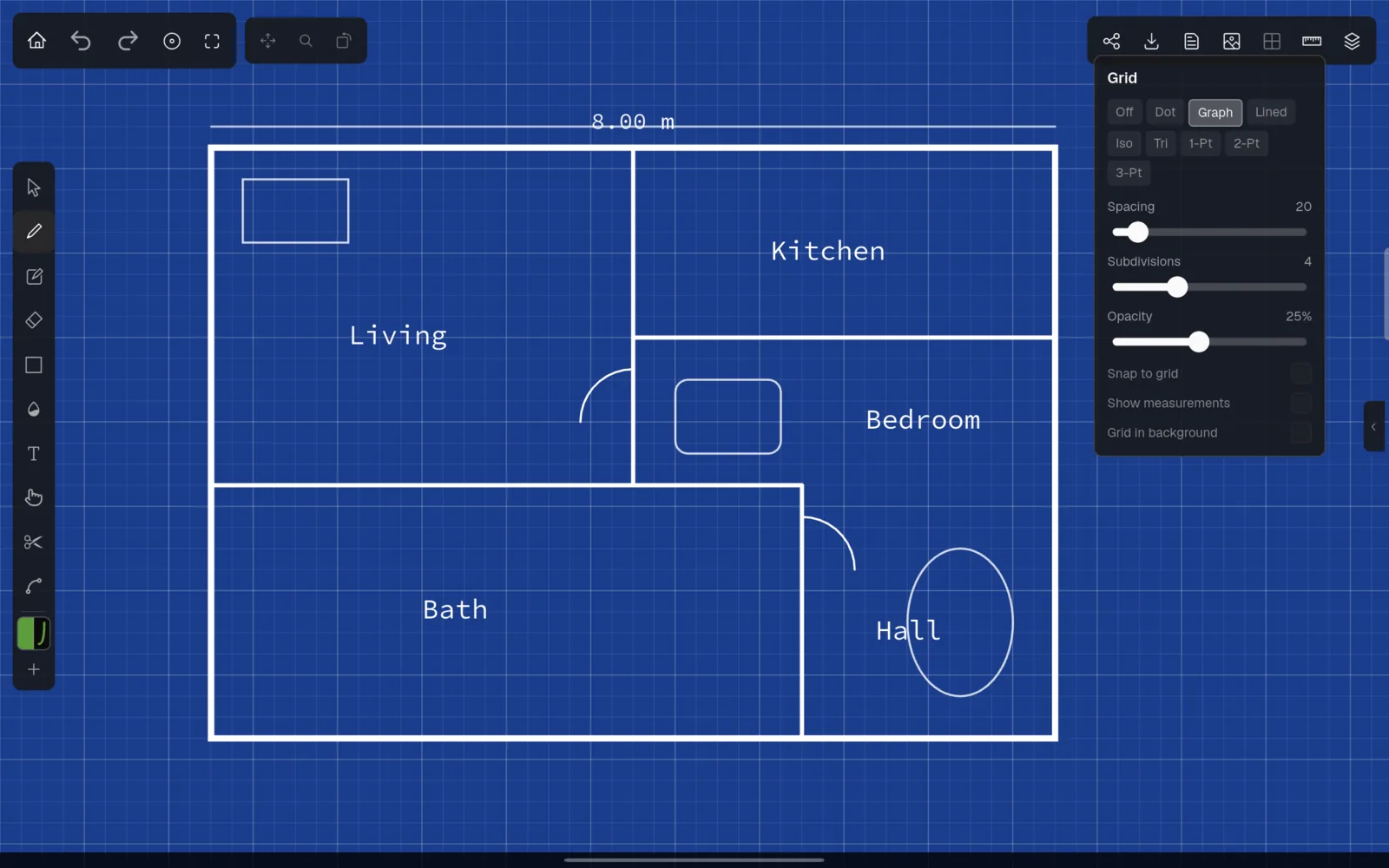
Choose a grid type: ‘Off’, ‘Dot’, ‘Graph’ (squares), ‘Lined’ (horizontal lines like a notepad), ‘Iso’ (isometric) or ‘Tri’ (triangles). The perspective grids ‘1-Pt’, ‘2-Pt’ and ‘3-Pt’ are described below. Further settings:
- ‘Spacing’ (8 to 100) is the distance between grid lines.
- ‘Subdivisions’ (graph grid only) draws every nth line more strongly.
- ‘Opacity’ (5% to 50%) controls how visible the grid is. Its colour adapts to the background automatically.
- ‘Snap to grid’ has three states. Tap it repeatedly to go from off to snapping to lines, and then to lines plus intersections. Pen and pencil strokes that start near a grid line follow it; shapes snap their corners to intersections.
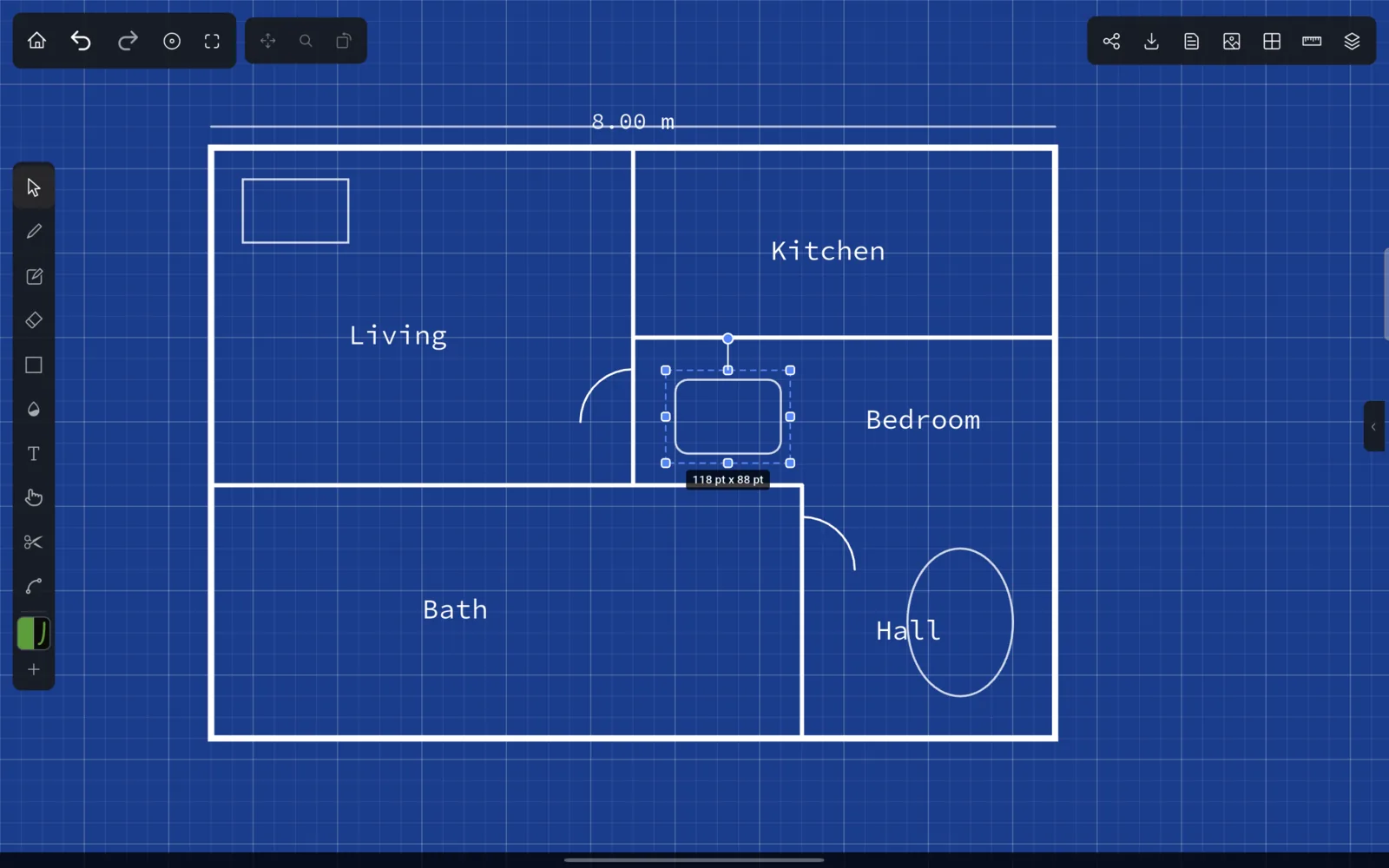
- ‘Show measurements’ displays the width and height (in points) while you draw a shape and below a selection.
- ‘Grid in background’ draws the grid behind your strokes rather than on top.
Perspective grids
‘1-Pt’, ‘2-Pt’ and ‘3-Pt’ draw perspective lines towards one, two or three vanishing points, with an optional horizon line.
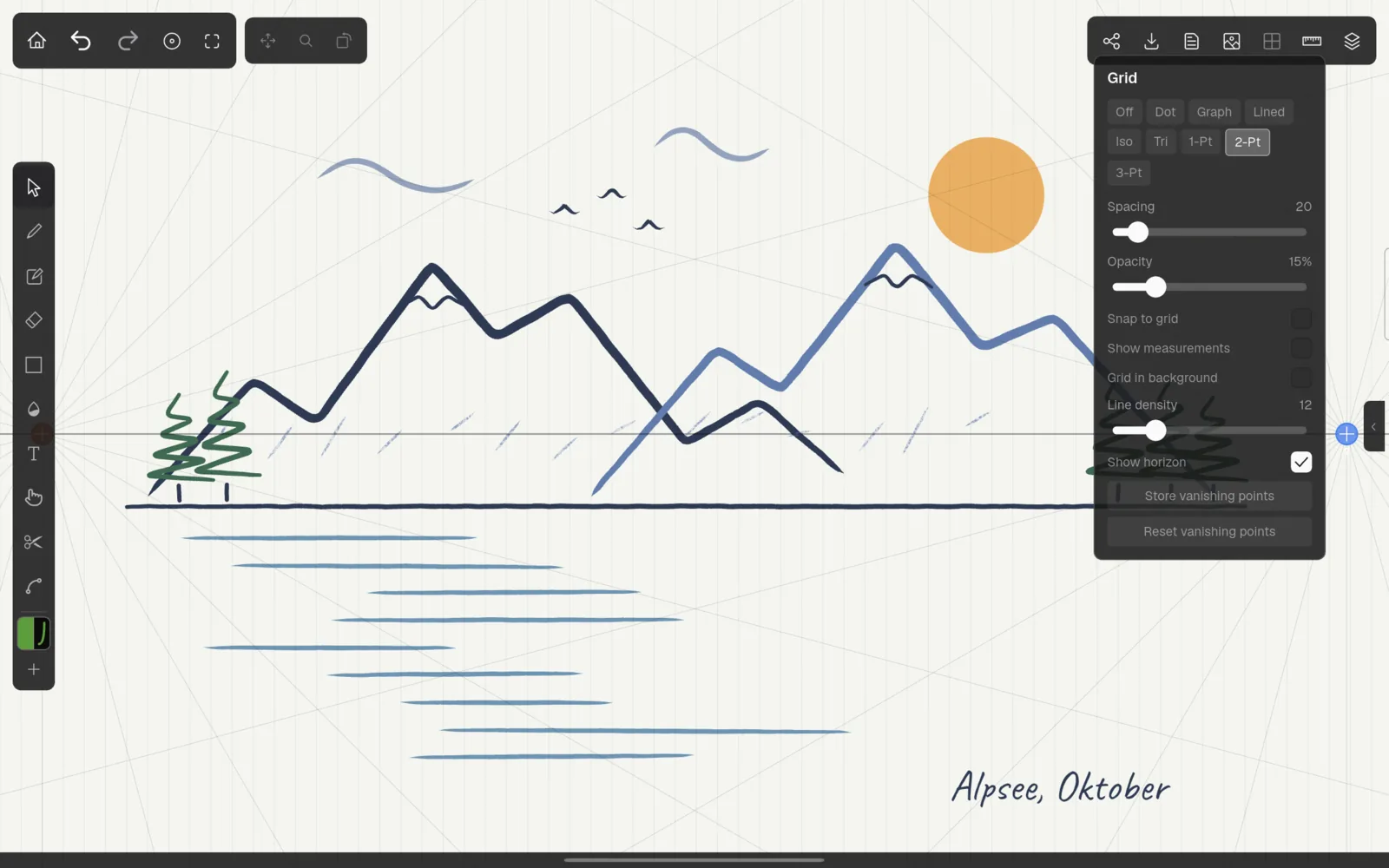
Drag a vanishing point’s round handle to move it; this works with any tool. ‘Line density’ (4 to 40) sets the number of lines, ‘Show horizon’ shows or hides the horizon. ‘Store vanishing points’ remembers their current positions, and ‘Reset vanishing points’ moves them back there (or to the default layout if nothing was stored). Snapping is not available for perspective grids.
Guides
Guides are rulers and ellipses that you place on the canvas and draw along, like a ruler or a template on paper. They are not part of the drawing and are not exported.
Tap the ruler icon in the toolbar. The guides panel opens, guides are switched on, and if there are none yet, two crossing rulers appear in the middle of the view.
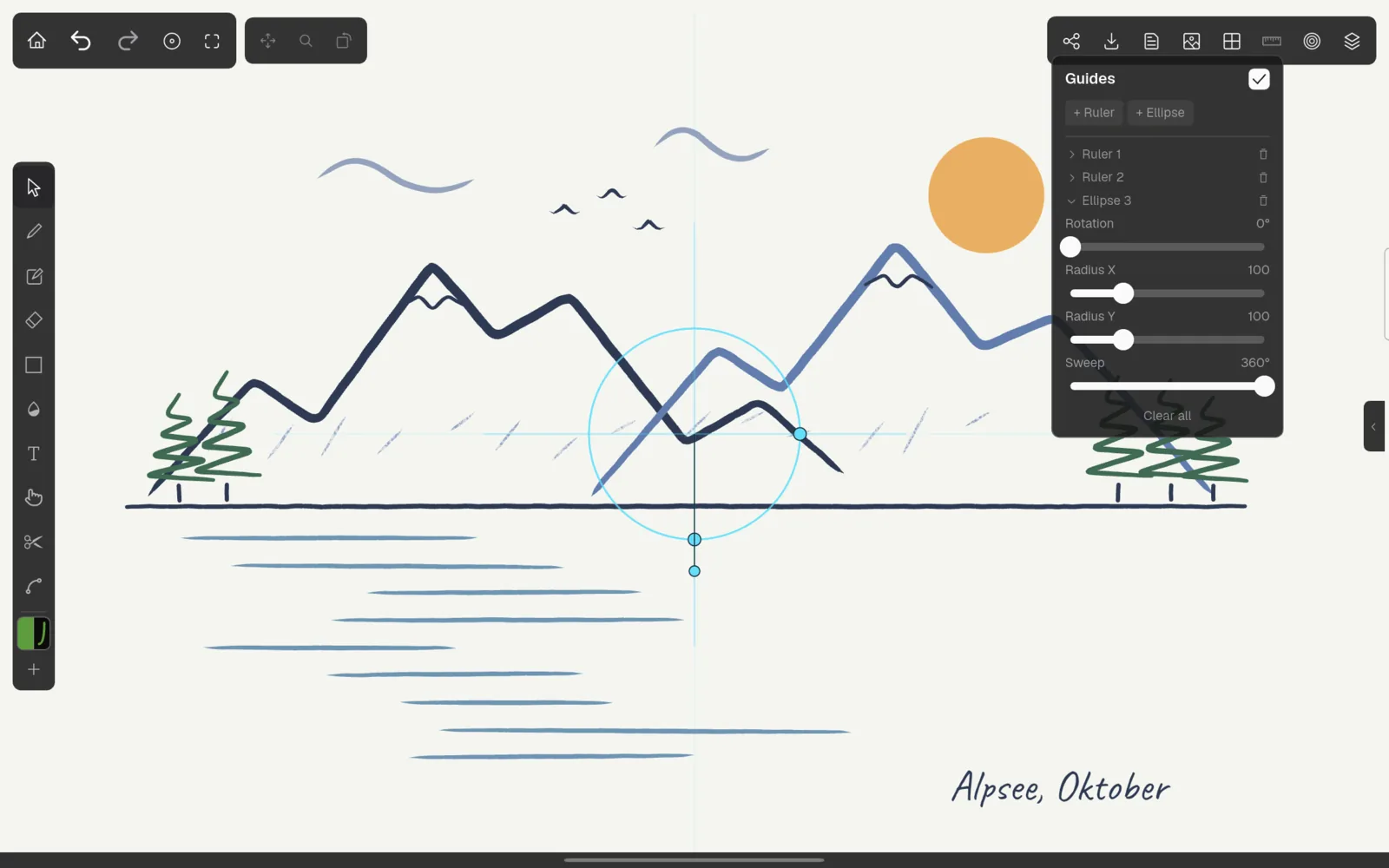
- ’+ Ruler’ and ‘+ Ellipse’ add a guide in the middle of the view.
- Tap a guide in the list to edit it: ‘Rotation’, ‘Length’ for rulers, ‘Radius X’, ‘Radius Y’ and ‘Sweep’ (for arcs) for ellipses. The bin icon deletes it, ‘Clear all’ removes all guides.
- The check box next to ‘Guides’ switches all guides on or off.
While the panel is open, you can also edit guides directly on the canvas: drag a guide to move it, drag the end of a ruler to turn and resize it, use the round handle to rotate, and the handles of an ellipse to change its radii and sweep. Two fingers on a guide move, turn and (for ellipses) resize it. When the panel is closed, the guides stay in place and can no longer be moved by accident.
Snapping to guides
When guides are on, the toolbar shows a target icon: ‘Snap to guides’. Switch it on, and every pen, pencil or shape stroke that starts close to a guide follows that guide exactly. This is how you draw straight lines along a ruler or smooth arcs along an ellipse.
Background
The picture icon in the toolbar opens the background settings.
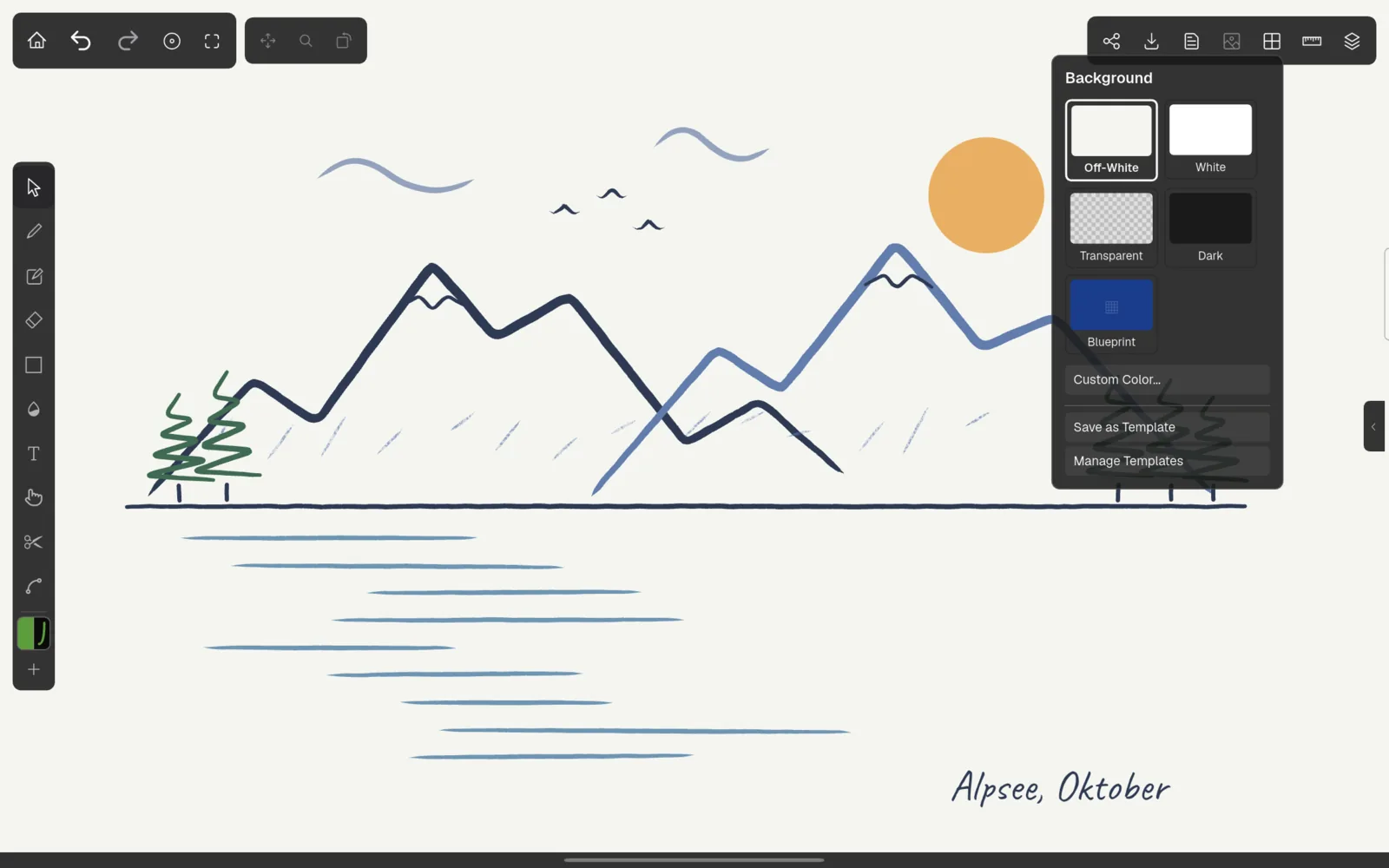
Tap a template to apply its background colour and grid in one step. ‘Custom Color…’ lets you pick any background colour. ‘Transparent’ shows a checkerboard; PNG exports from such a project have a transparent background.
Templates
Templates combine a background colour, a grid and a starting pen colour. They are offered when you create a project and in the background panel. Kritzel Studio includes five:
| Template | Background | Grid | Pen colour |
|---|---|---|---|
| ‘Off-White’ | warm off-white | none | dark grey |
| ‘White’ | white | none | black |
| ‘Transparent’ | transparent | none | black |
| ‘Dark’ | near black | none | white |
| ‘Blueprint’ | dark blue | graph | white |
‘Save as Template’ stores the current background, grid and pen colour as a new template. ‘Manage Templates’ opens the template list in the settings, where you can edit, rename, reorder and delete templates. The first template in the list is the default for new projects. See Settings.